
There is no official P999 desktop app. On a PC or laptop you play through your portal’s mobile-browser web version — open it in Chrome or Edge and log in with your mobile number and OTP, exactly as on the phone. It’s the same account and balance. An Android emulator can run the APK on a computer, but it adds setup and risk for little gain.
Last updated 25 September 2026. This guide covers why there’s no P999 PC download, how to play on a laptop through the browser, what you lose versus the app, and the emulator option and its trade-offs. For the phone-free browser route in full see the P999 on iPhone & browser guide; for the Android APK, the P999 APK download guide.
There's No Native P999 PC App
No P999 portal we've seen offers a Windows or macOS program, and none links to a Play Store or App Store build (the "p999" apps on Google Play come from developers we couldn't tie to any portal). Anything advertised as a "P999 PC download" or "P999.exe" is not an official client — treat it the way you'd treat any unofficial file, and check the guide to which P999 site is real first. The supported way onto a computer is the browser.
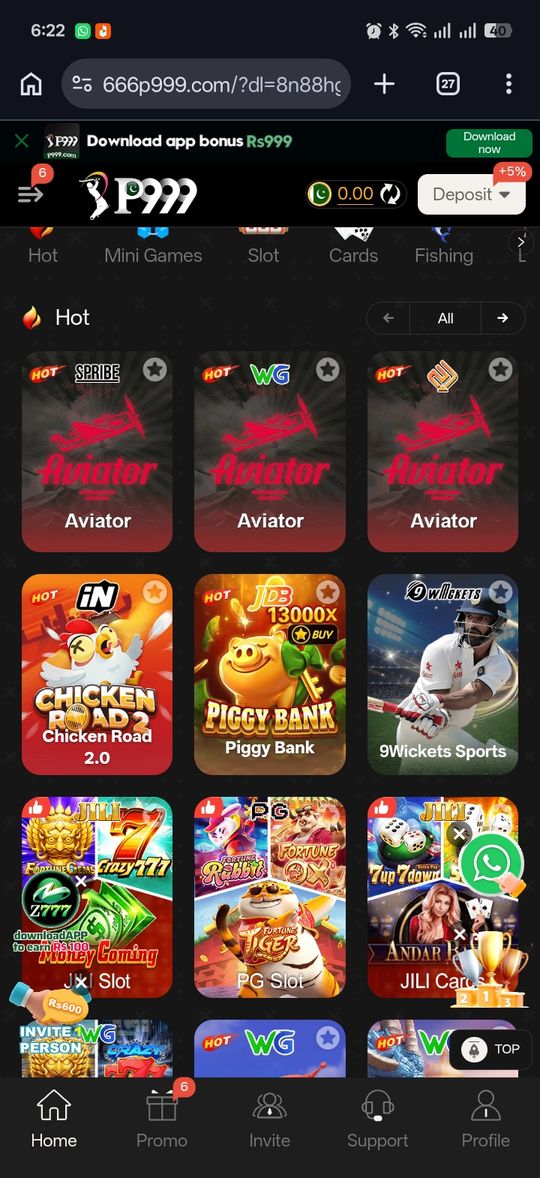
Playing Through the Browser on a Laptop
Where a portal offers a web version, the desktop route is the same as the mobile browser route:
- Open the portal's address in Chrome, Edge, or another current browser on your PC
- Enter your Pakistani mobile number and the OTP, exactly as you would on the phone
- The lobby loads in the browser window — no install, and no "unknown sources" permission to manage
- Your account, balance and history are the same ones you see on mobile, since it's the same account
What Works and What Doesn't in a Desktop Browser
Most of the lobby is built for a phone screen, so on a laptop expect a tall, narrow layout — often shown in a centred mobile-width column rather than filling the window. Games themselves generally play fine. What you don't get is push notifications, any offline caching, and in some cases the smoothest experience for fast games like Aviator if your connection or browser is slow. If a game won't load, an outdated browser is the first thing to update — the same point covered in the P999 login not working guide.
The Android Emulator Option
An Android emulator (BlueStacks and similar) creates a virtual Android device on your PC that can install and run the APK. It works, but weigh the downsides: you're running an unvetted APK on your personal computer rather than a phone, emulator setups are occasionally flagged by anti-fraud systems on real-money platforms, and it's more to install and maintain than just opening a browser tab. For most people the browser is the better answer; the emulator is only worth it if you specifically want the full app UI on a big screen and accept the trade-offs. If you do install the APK inside one, the P999 APK installation problems guide still applies.
Logging In on a New Device
The first time you sign in from a PC or a fresh browser profile, the portal may run an extra verification step — a short wait, or a confirmation prompt — because it hasn't seen that device before. This is normal and usually clears in a couple of minutes. If login genuinely fails rather than just pausing, work through the P999 login not working checklist, and if your OTP never arrives, the P999 OTP not received guide goes deeper.
Is Playing on PC Against P999's Rules?
Using the browser version on a laptop is just normal web access — there's nothing unusual about it and no portal we've seen treats it as a violation. Emulators are the grey area: some real-money platforms' terms discourage or restrict emulator play, and anti-fraud systems can treat an emulator session as higher-risk, occasionally leading to extra verification or a hold on a withdrawal. None of the P999 portals publish a clear policy either way, so if you use an emulator, keep the same registered number and linked wallet you use on mobile and don't be surprised by an extra check. The P999 withdrawal problems guide covers what a verification hold looks like.
Keeping One Account Across Phone and PC
There's one account per registered number, so signing in on a laptop doesn't create a second one — it's the same wallet, the same records, the same everything. You can move between phone and PC freely. Just don't register a new number to "get a PC account": that splits your balance and any invite-code link across two accounts you then have to manage separately.
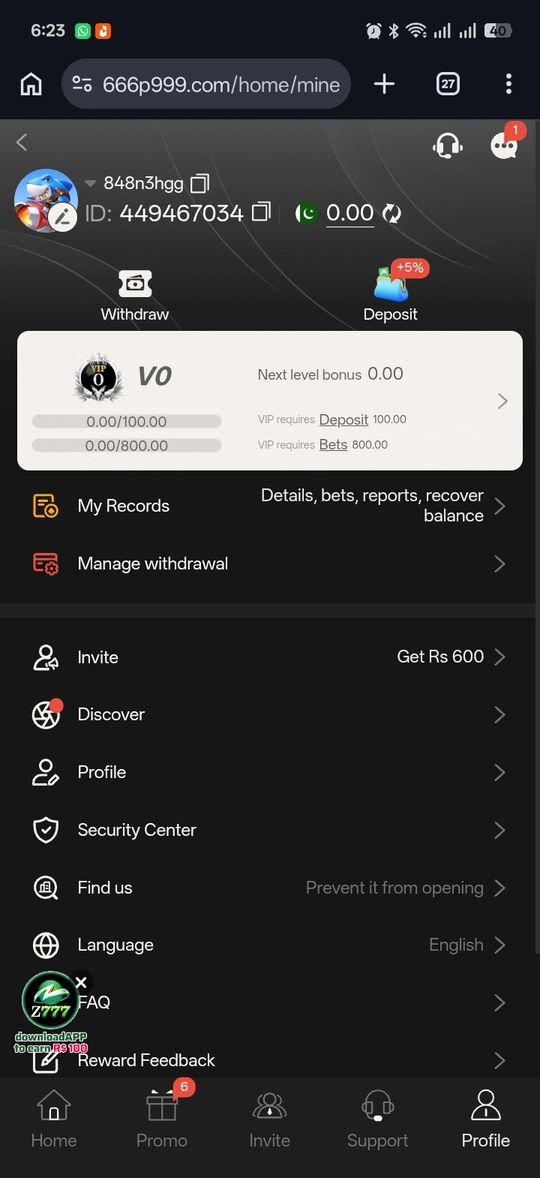
P999 Game on PC or Laptop at a glance
| Method | Setup | Trade-off |
|---|---|---|
| Mobile browser on the PC | Open the portal's URL, log in with number + OTP | Mobile-width layout; no notifications or offline use |
| Android emulator (BlueStacks etc.) | Install the emulator, then the APK inside it | Unvetted APK on your computer; possible anti-fraud flags; more upkeep |
| Phone only | Nothing — use the app or phone browser | No big screen; but the simplest and lowest-risk |
Pros and cons
- The browser route needs no install and no APK on your computer
- It's the same account as your phone — nothing to migrate
- Works on Windows, macOS, or a Chromebook equally
- No official desktop app, so "P999 PC download" files are unofficial
- The lobby is built for a phone screen and looks cramped on a laptop
- Emulators add real-money-account risk and setup for little gain over the browser
Verdict
P999 on a PC or laptop means the browser version — open the portal in Chrome or Edge and log in with your number and OTP, using the same account as your phone. There's no official desktop app, so treat any "P999 PC download" as unofficial. An Android emulator is possible for the full app experience on a big screen, but it adds risk and upkeep that the browser route avoids.