
P999 for iPhone and P999 online without an APK turn out to be the same thing: there is no Apple App Store listing in 2026, so iOS access and no-install browser access are one and the same path. You open the portal in Safari or Chrome and log in with the same mobile-number-plus-OTP flow the Android app uses.
This guide covers exactly how that works on iPhone, how to add a home-screen shortcut so it behaves like an app, what you give up by not installing (mainly push notifications and offline caching), and how browser access works on Android too. For the Android APK route instead, see the P999 APK download guide.
Why There's No iOS App
P999 portals distribute an Android APK directly rather than listing through either app store. There's no confirmed public reason given for skipping the App Store specifically, but the practical result is the same across every portal we checked: iOS users don't install anything.
How to Play P999 on iPhone
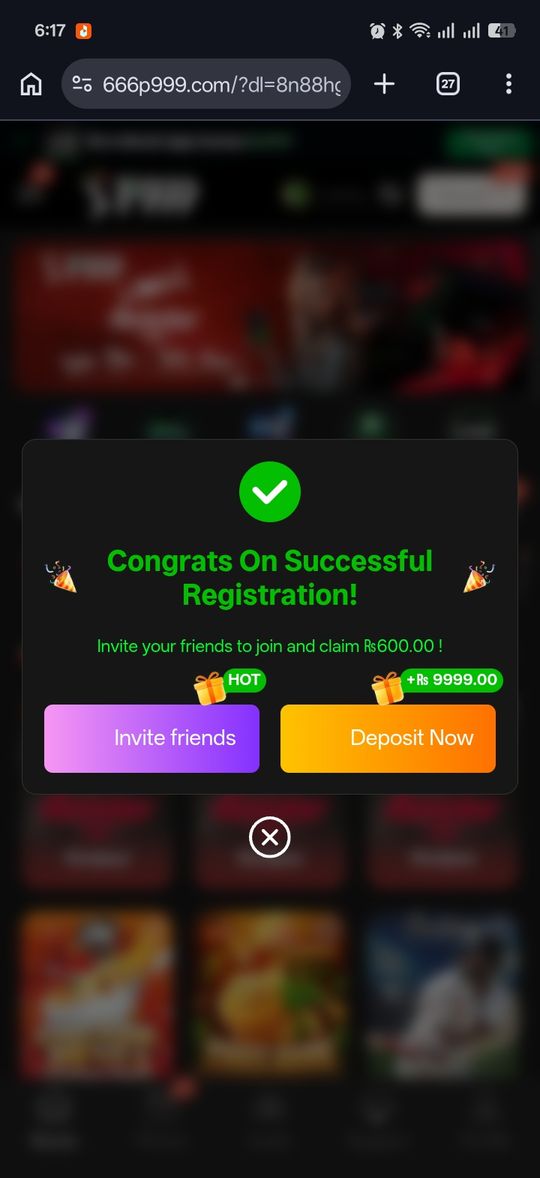
Access runs entirely through your mobile browser instead of an installed app.
- Open your P999 portal link in Safari or another mobile browser
- Use Play Now rather than Download — this site detects iOS automatically and shows the browser option
- Log in the same way as Android: mobile number, then the SMS OTP
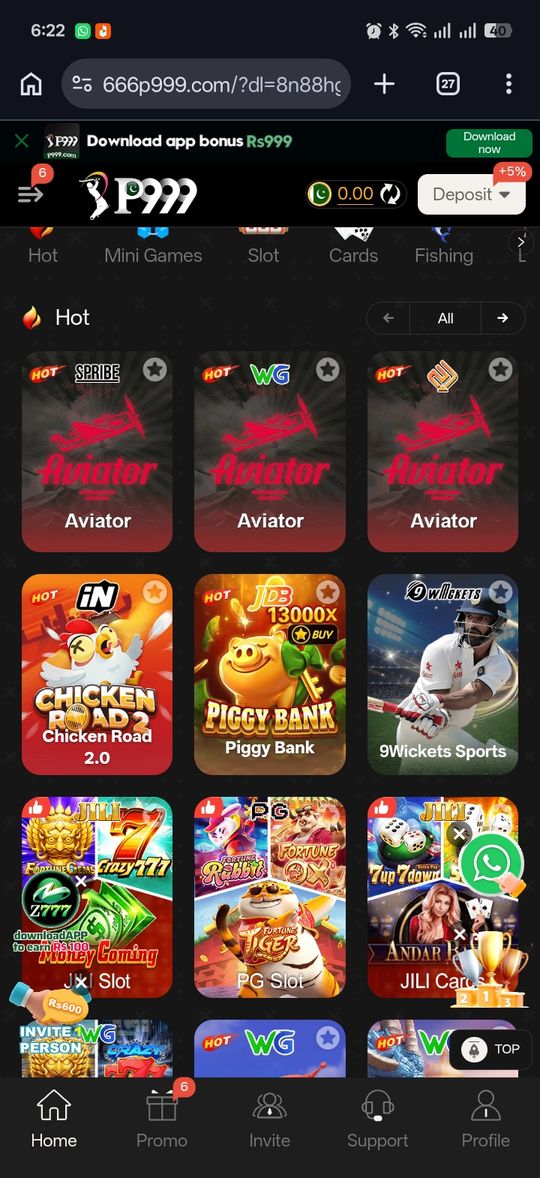
- The lobby, wallet and games all run inside the browser tab
Browser Access on Android Too
The same browser-based access works on Android if you'd rather not install the APK — useful if storage is tight or you just want to try the lobby first.
What You Lose Without the App
Browser access is functionally the same login and game lobby, but a few app conveniences don't carry over.
- No home-screen icon unless you manually add the page as a browser shortcut
- No native push notifications for bonuses or account activity
- Session may not persist as long as an installed app between visits
Adding a Home-Screen Shortcut
You can get most of the way to an app-like experience without installing anything, using your browser's own "add to home screen" feature.
- In Safari on iOS: tap the Share icon, then "Add to Home Screen"
- In Chrome on Android: tap the menu (three dots), then "Add to Home Screen" or "Install App"
- This creates an icon that opens directly to the portal in a browser tab — it's a shortcut, not a native app, so it still won't send push notifications
Browser Compatibility
The portal is built to run in a standard mobile browser, so Safari on iOS and Chrome on Android are the most reliably tested paths. If a page doesn't load correctly, updating your browser to its latest version resolves most rendering issues before anything else is worth trying.
Data Usage Considerations
Because nothing is installed locally, every session loads assets over your connection rather than from storage on your device. On a slow or capped mobile data plan, this can mean somewhat more data use per session than an installed app that caches some assets locally — Wi-Fi is the more data-friendly option if that matters to you.
Switching Between App and Browser on the Same Device
There's nothing stopping an Android user from having both the installed app and a browser shortcut side by side, using whichever is more convenient in the moment. Since your account lives on the server side under your mobile number rather than in either the app's or browser's local storage, switching between the two doesn't require re-registering — just logging in again with the same number and a fresh OTP if the session has expired on that particular path.
Private/Incognito Browsing and P999
Using a private or incognito browser tab works for accessing the portal, but it typically won't retain your session between visits the way a normal tab or an installed app would — each visit in a fresh private tab is closer to a fresh login. If you're using browser access regularly, a normal (non-private) tab or the home-screen shortcut keeps things smoother session to session.
Pros and cons
- No installation, no unknown-sources permission to manage
- Works identically on iOS and Android
- Nothing to update — you always get the current version of the portal
- No home-screen app icon by default
- No push notifications
- Depends on a stable browser session rather than a persistent app login
Verdict
iPhone access to P999 isn't a workaround — it's the intended path, since there's no App Store app to begin with. Open the portal in your browser, log in the same OTP way as Android, and you're in the same lobby. The trade-off is the small set of app conveniences (icon, notifications) you'd get from an install, which Android users can also skip if they'd prefer.