
When the P999 APK won’t install, Android is rejecting the file itself — not the app crashing later. Five causes cover almost every case: an incomplete download, not enough free storage, the unknown-sources permission still off, Google Play Protect blocking an outside-store install, or an Android version that’s too old. The single most common fix is deleting the file and re-downloading it from the portal’s own page.
Last updated 6 September 2026. Below, each P999 APK install error message (“App not installed”, “Install blocked”, “problem parsing the package”) is matched to its cause and fix, with a table you can scan. For where to get the file safely, see the P999 APK download guide; if the install just won’t work, the browser version is a full fallback.
"App Not Installed" Error
The most common installation-blocking error, usually caused by one of a few things.
- Not enough free storage to complete the install
- An existing, differently-signed version of the app already installed under the same name — uninstall the old one first
- A partially downloaded or corrupted APK file — redownload it
"Install Blocked" or Unknown-Sources Prompt Looping
This means the unknown-sources permission genuinely isn't enabled yet for the app you're using to open the file.
- Go to your phone's Settings → Apps → [Browser or File Manager] → Install unknown apps, and enable it specifically for that app
- Retry the install from the same file — you don't need to redownload
Download Completes but the File Won't Open
A partial or interrupted download is the usual cause. Delete the file and download again on a stable connection — Wi-Fi rather than a spotty mobile connection, if that's available. Always take the file from the portal's own registration or download page; the P999 download guide covers where that is and how to sanity-check the file size before you install.
Free Storage and Android Version
Two things Android checks silently before it will install anything. Free storage should be comfortably more than the download size — a few hundred MB of headroom, not just enough to fit the file — because the installer unpacks the app during setup. And the APK targets a minimum Android version; a very old phone can throw "app not installed" or a parsing error on a current build. Check Settings for your Android version and free space before retrying, and clear space by removing unused apps or large downloads rather than photos.
Play Protect or Antivirus Warnings
Installing outside the Play Store can trigger a warning from Google Play Protect or a third-party antivirus app, since the file wasn't reviewed by Play Store's own vetting process. This is expected for any APK from outside the store, not unique to P999 — but it's also exactly the moment to confirm you're installing from the specific portal you intended, since that warning is your last checkpoint before the file runs. If you have any doubt about the source, stop and check the P999 safety guide first — because several sites use the P999 name, the file's origin matters more than the warning itself.
"Parsing Error" or "There Was a Problem Parsing the Package"
This specific error usually means the downloaded file is incomplete, corrupted, or was renamed/modified in a way Android's installer can't process — rather than anything about permissions.
- Delete the file completely and redownload it fresh, rather than trying to install the same file again
- Confirm your Android version is current enough to support the app — very old Android versions can occasionally trigger this on modern APKs
- Avoid downloading through a file-sharing or messaging app that might alter the file; download directly from the portal's own link
Storage Location Matters
Where the downloaded file lives can occasionally affect installation — files saved to an SD card versus internal storage, or inside a deeply nested folder your file manager struggles to navigate, can behave inconsistently across different Android skins and manufacturers. If install keeps failing and none of the above has helped, try moving the downloaded APK to your device's main internal Downloads folder and installing from there.
Manufacturer-Specific Security Layers
Some Android manufacturers (Xiaomi's MIUI and similar heavily customized skins are commonly reported examples) layer their own additional security prompts on top of standard Android's unknown-sources permission — meaning enabling it in Android's own settings isn't always the whole story. If you've enabled unknown-sources correctly and installation still silently fails or gets blocked, check your phone manufacturer's own security or app-management settings for a second, separate permission specific to that skin.
If the Install Simply Won't Work: Use the Browser
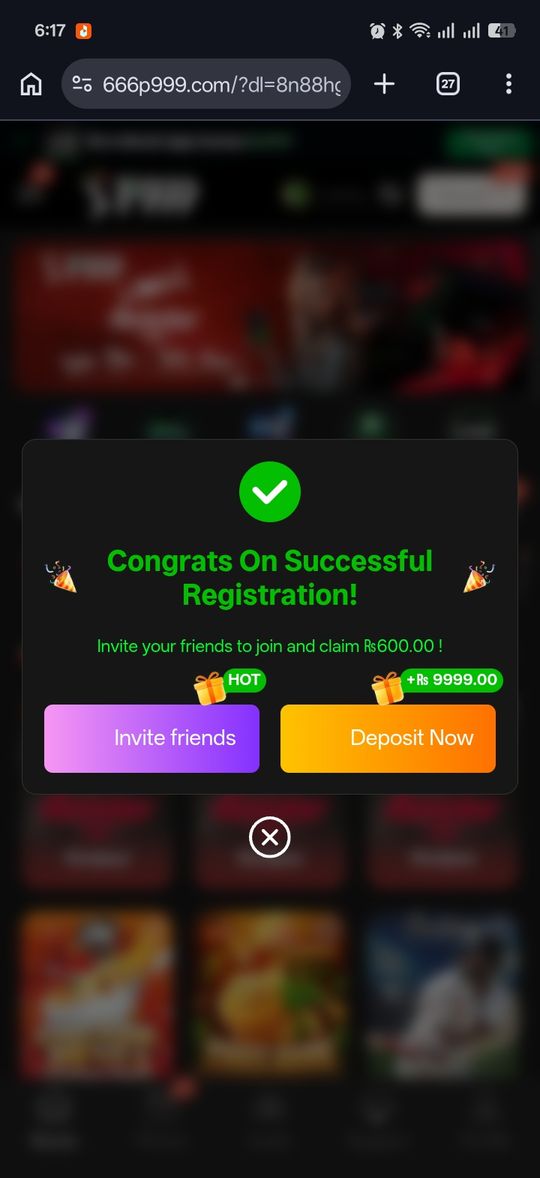
Where a portal offers a browser version, you don't need the APK at all — you can log in and play through your phone's browser with the same number-and-OTP flow, and add a home-screen shortcut so it opens like an app. That's also the only route on an iPhone, since iOS can't install an APK. The P999 on iPhone and browser guide covers what you give up versus the Android app (mainly push notifications and offline caching).
After a Successful Install
Once the install completes, opening the app for the first time may take slightly longer than normal as it initializes — this is expected and not a sign of a problem. If it does hang at this specific first-open stage well beyond what feels reasonable, that's the point to check the P999 app not working guide rather than continuing to troubleshoot the installation itself, since the install and first-open are genuinely separate steps with different causes.
P999 APK Won't Install at a glance
| Error on screen | What it means | Fix |
|---|---|---|
| App not installed | Low storage, or a differently-signed old version | Free up space; uninstall the old app; then reinstall |
| Install blocked / blocked for your protection | Unknown-sources permission is off for your browser | Settings → Apps → your browser → Install unknown apps → allow |
| There was a problem parsing the package | Incomplete or altered download file | Delete it, re-download directly from the portal's page |
| Download finishes but the file won't open | Interrupted download | Re-download on Wi-Fi, then install from the Downloads folder |
| Play Protect: unsafe app blocked | Normal for any outside-store APK | Confirm the source, then choose "Install anyway" |
| Unknown sources on, still fails silently | Extra manufacturer security layer (MIUI and similar) | Enable the second permission in the phone brand's security settings |
| App not compatible with this device | Android version too old for the build | Update Android if you can, or use the browser version |
Pros and cons
- Nearly every install failure has a specific, identifiable fix
- None of these require contacting support — they're all device-side
- Multiple different-looking errors can share the same underlying cause, making the first fix attempt sometimes a guess
- Installing outside the Play Store means skipping Android's own vetting, which is the actual tradeoff behind several of these prompts
Verdict
Installation failures are almost always one of a few things: storage, a conflicting old install, an incomplete download, or the unknown-sources permission not actually being enabled for the app you're using. Match the error message in the table to its fix and the install itself is quick — the Play Protect warning along the way is a normal part of installing outside the Play Store, not a P999-specific red flag. If nothing works, the browser version is a full fallback.